Fixing Microsoft Windows 10 shut down freezes

Hello there!

For months, I was experiencing difficulties with Microsoft Windows 10 not shutting down properly. The system would hang indefinitely, displaying on the screen: «Shutting down...». The mouse cursor was still responsive and typical disk activity was ongoing. It felt as though the system was waiting for a task to finish. This problem was occurring in a seemingly random fashion, not on every shutdown. Debugging the problem was a slow process because of this.

I searched the Internet for various possible solutions to fix the shutdown problem. I went through the typical solutions, such as setting WaitToKillAppTimeout and HungAppTimeout to low values in HKEY_CURRENT_USER\Control Panel\Desktop. It did not help. I tried changing the page file size to a smaller one, because I suspected memory management issues. Nothing helped.

To better narrow down the possible causes, I decided to first log out of the user session and then shut down. After a few days, this revealed that it was a user session problem, not a shutdown problem. The system was sometimes hanging at session end. I looked in the Event Viewer for possible explanations. I found that winlogon.exe — the Windows Logon process — was crashing. It was crashing because of a module named verifier.dll. The verifier.dll file is a core component of Microsoft's Driver Verifier (and Application Verifier) utility, a built-in Windows diagnostic tool.

For some reason, I had the Verifier module attached to winlogon.exe. Upon further research, I suspect SecureUXTheme caused this in my case.

The solution was straight-forward:

  • Open a command prompt and run: verifier /reset.
  • In the Registry Editor, navigate to: HKEY_LOCAL_MACHINE\SOFTWARE\Microsoft\Windows NT\CurrentVersion\Image File Execution Options\winlogon.exe
  • Remove the GlobalFlag and VerifierDLLs subkeys.

I hope this post will be useful to someone out there.
Windows 7 Accessible Aero theme

Hello, friends!

I am a happy Windows 7 x64 user since 1st of January 2010. Although, since day one I wasn't happy about the default Aero theme, because it is too transparent and the title bars texts are not visible on dark wallpapers and such. So, last week I thought of doing something different. Here's a Windows Accessible Aero theme done by me, based on the default Aero theme. I just changed what I thought it lacks contrast. I've searched on-line for such themes, but I liked none of them. As such, I publish this theme for others who might need such a theme.

Download the Windows Accessible Aero theme (ZIP archive)

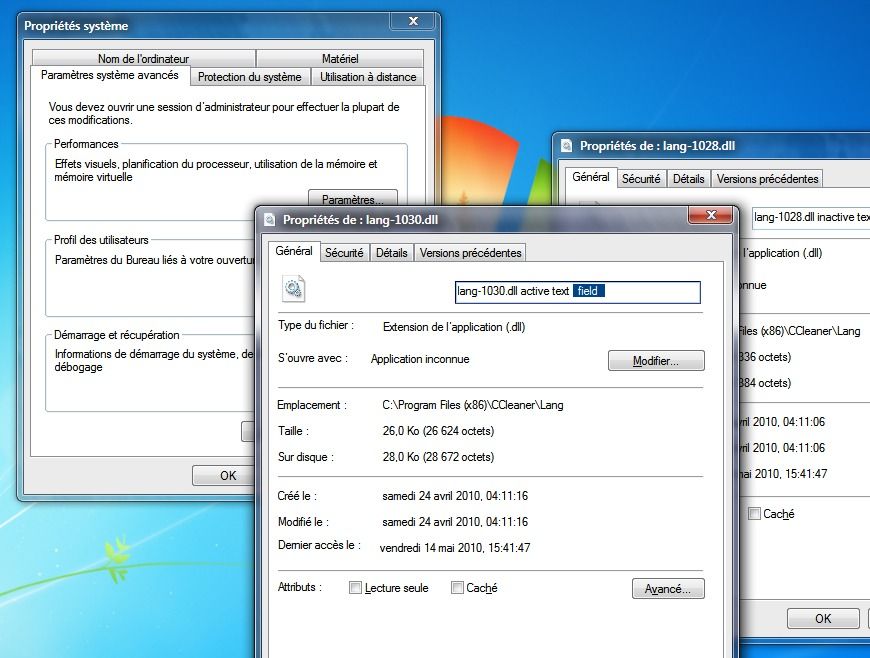
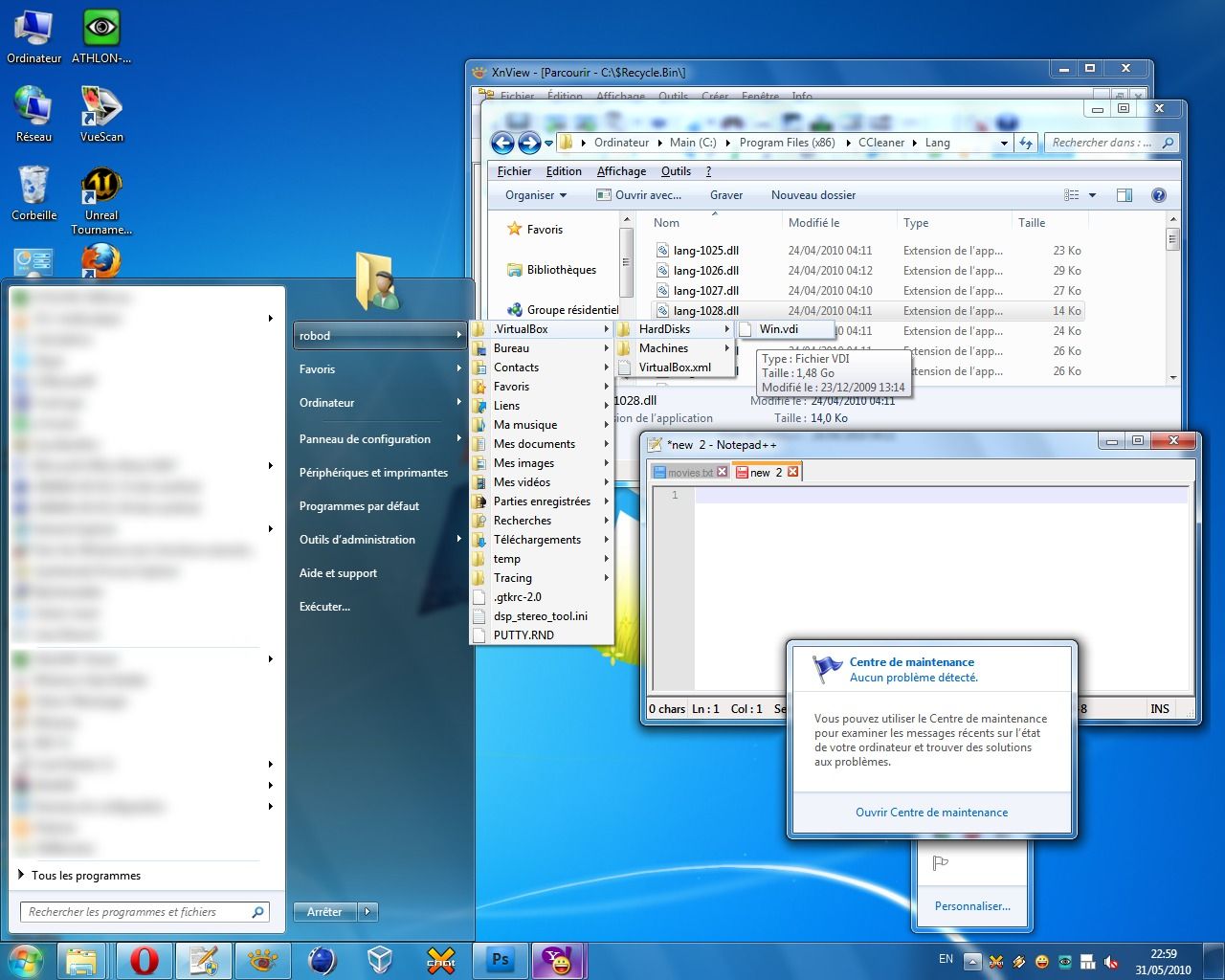
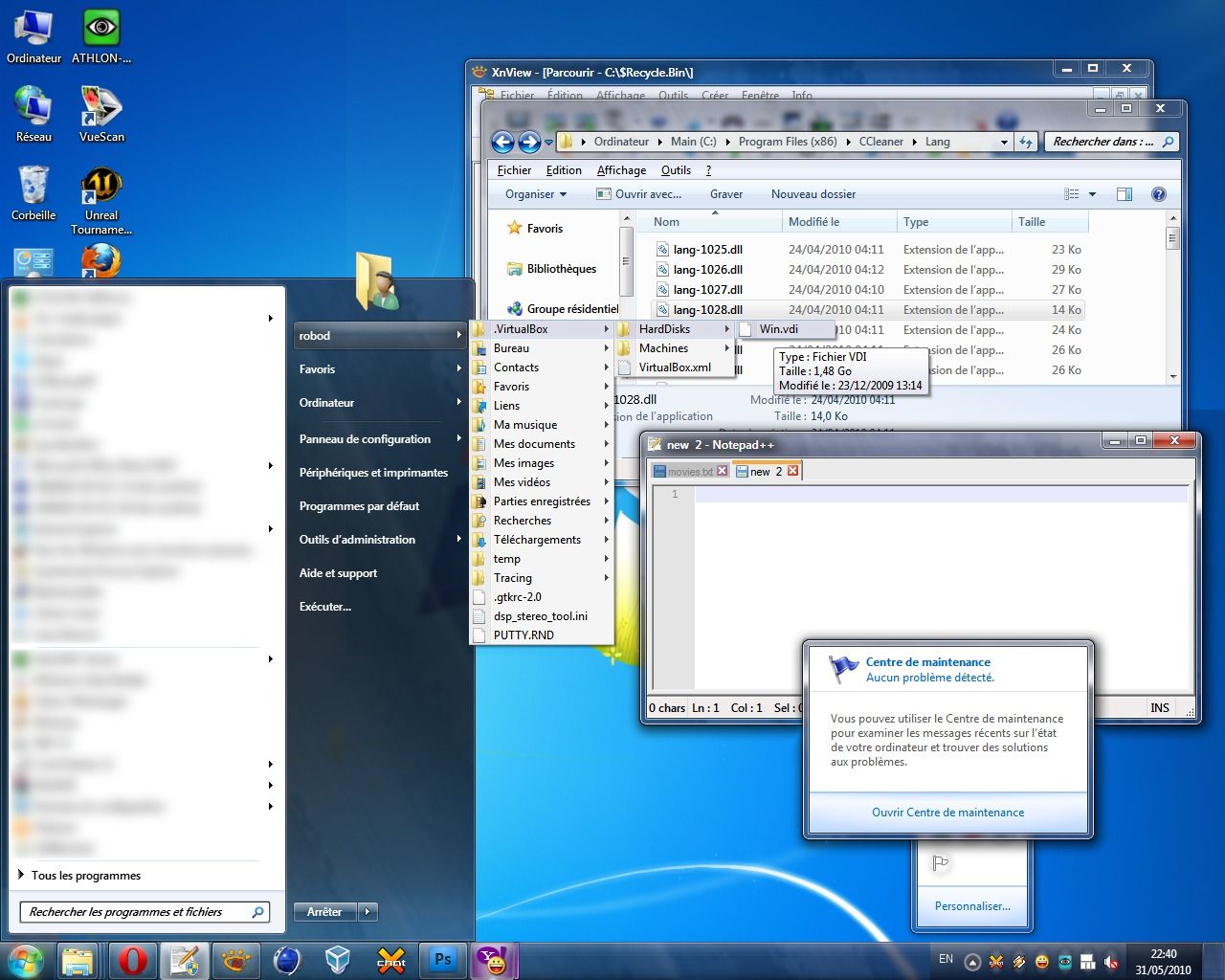
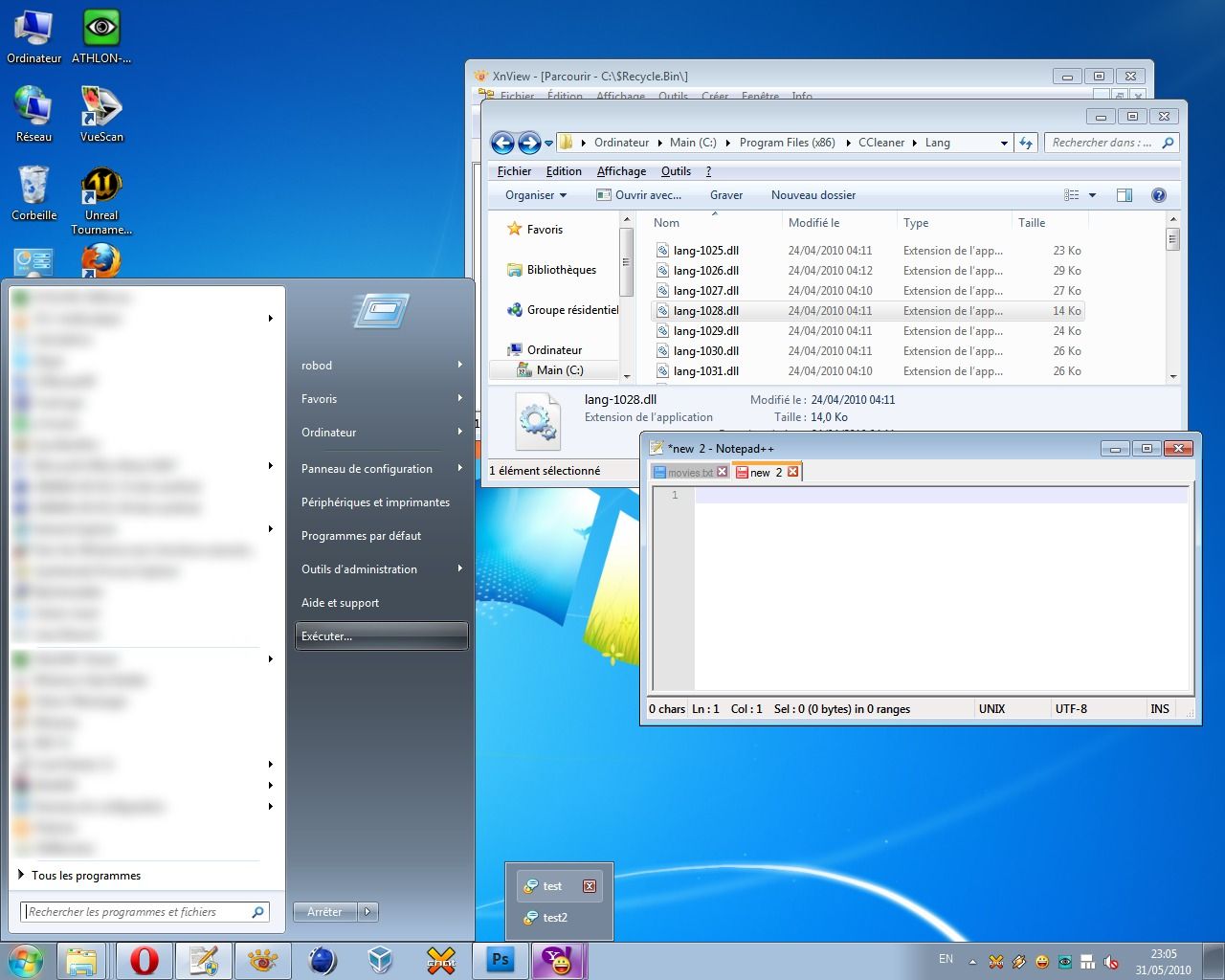
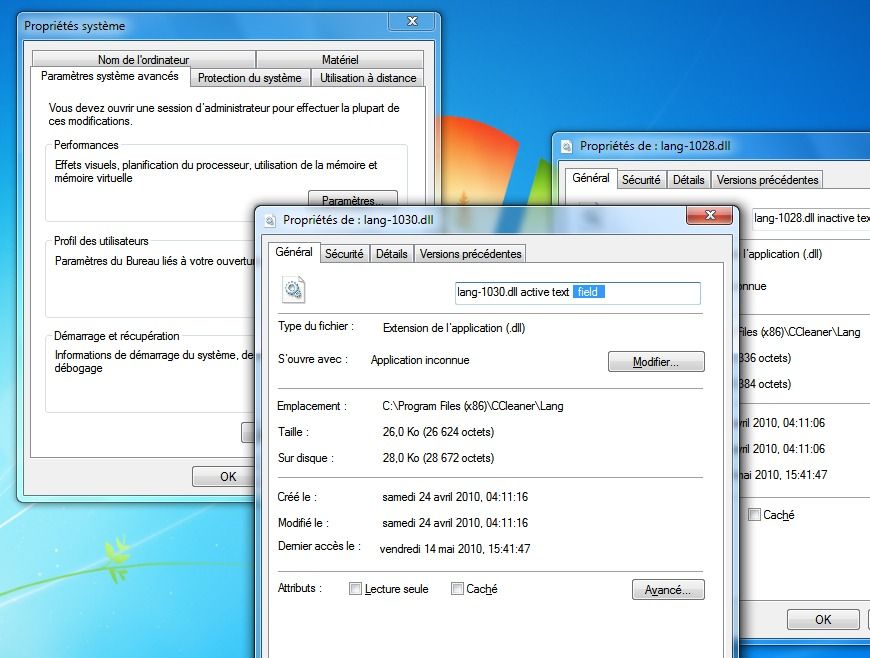
For easiness, I prepared several screen-shots portraying the difference between my theme (Accessible Aero) and the default Aero theme. These screen-shots are a mash-up of different Windows elements, in Basic and Aero modes.

Screen 1: Windows Aero default theme

Screen 1: Accessible Aero theme

Screen 2: Windows Aero default

Screen 2: Accessible Aero theme

Screen 3: Windows Basic default theme

Screen 3: Accessible Aero theme [Basic mode]

If you like what you see, download the Accessible Aero theme here.

Here is a round-up of what this theme features:

  • considerably less transparent glass, dark glass
  • white text title bars with black glows, so they are readable irrespective of the background of the window
  • increased contrast in the title bars for the Basic mode, when not using Aero and I also adjusted the caption buttons accordingly by enhancing the contrast between the glyphs and the buttons
  • a much darker task-bar in Basic mode, making the clock and pop-up titles of the applications running much more readable
  • a darker Start menu in Basic mode
  • increased contrast for the Alt-Tab application switcher in Basic mode
  • added a strong white glow to Alt-Tab app switcher to make the the title visible
  • made text fields slightly more visible
  • defined a clear difference between active and inactive text fields, making the borders thicker
  • a more visible highlighting color for menus, pop-ups menus, while trying to maintain the default look
  • file column headers in Explorer or other applications, are enhanced as well; more visible and a more clear border between them
  • changed the gray text color of tool tips to black for increased readability
  • added dark glow to application titles in task bar and in the thumbnails to avoid situations when the titles are unreadable
  • made the address bar, search field and the whole breadcrumb much more readable; brighter background and darker texts
  • more visible separator in unlocked task-bar and other types of separators or window resize grippers
  • bigger close button in task-bar pop-up thumbnails
  • made the task-bar icons less wide, more ergonomic, both in Basic and Aero modes
  • made more visible the MDI window buttons: close, minimize and restore/maximize
  • restyled the whole task-bar to my personal taste

By now, it is clear what is my main purpose with this theme: readability, accessibility, hence the title. So, it is not about eye-candy, fancy designs, or not even originality. I also published this theme on deviantart.com, for those using dA.

Download the Windows Accessible Aero theme (ZIP archive)

Feel free to send me comments to improve this theme.

Newer entries

Older entries

Please subscribe Subscribe to the RSS feed

Current page: 1 of 1.